Showing posts with label apps. Show all posts
Showing posts with label apps. Show all posts
Sunday, March 12, 2017
Top Best Ad Blocker Apps for Android Phone 2016
Top Best Ad Blocker Apps for Android Phone 2016
If you are tired of annoying ads that most likely to appear while playing games, watching videos or visiting any site and wanted to get rid of all such ads, then you have just landed at the right place. Below we’re going to share some of the best ad blocker apps for android to put a stop on all these ads.
So you are one of those who totally dislike and unhappy with pop ups and ads coming between you and your favorite android apps and need a solution to kick out the most unwanted ads on your android phone screen. After installing one of the ad blocker app for android given below will permanently block ads and pop ups.
Adblock Plus for Android
In our list the first app is Adblock Plus that although no longer available on Google Play store but you can still download its android version apk on Adblock Plus official site. To me the Adblock Plus is one of the best and most trusted ad blocking apps out there. You can also download Adblock Browser for Android as well as it is available in extension for Chrome, Firefox and several other browsers.
AppBrain Ad Detector
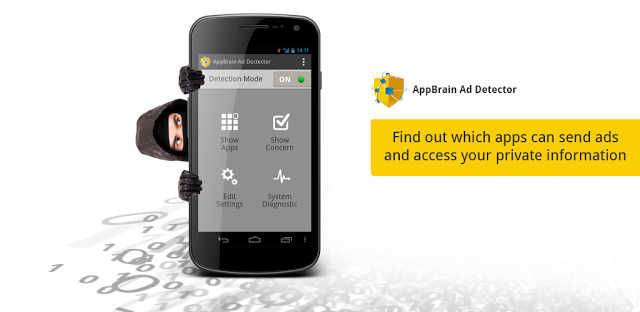
AppBrain Ad Detector is yet another useful app that detects and stops any harmful app or ads responsible of sending unauthorized Push Notifications. It can also block unwanted spammy ads and apps that could share your personal information and data to third party.
TrustGo Ad Detector
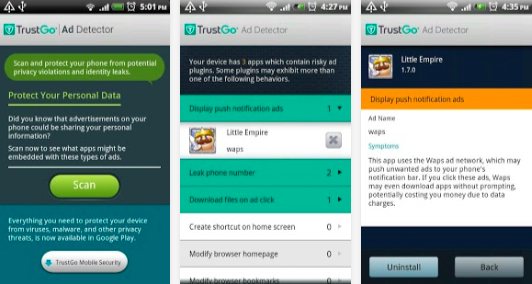
The third and last app in our list is TrustGo Ad Detector that is very helpful to protect your android device against unauthorized access to your personal data. It detect and inform you about any ad or app involving in security theft, privacy violations and any risk to your identity.
Available link for download

Saturday, February 25, 2017
Simple Android Server Now Perfectly Working With Etisalat Social Pack Power all ur Apps no Nid 4 Auto Droid Proxy
Simple Android Server Now Perfectly Working With Etisalat Social Pack Power all ur Apps no Nid 4 Auto Droid Proxy
Still working or probably started working with the social and smart pack including the mtn bis. For Etisalat Social Pack you will have to get a very strong ip and port for it to be able to work and you must also update to the latest simple server version on Google play store. or here or here
I will be making a screenshot about this, so check them very well.
The first step to do is to configure your network settings like this:
APN: Etisalat
Proxy: 127.0.0.1
Port 8080.
Then go to your simple server and configure it like this


Please in the injection line leave four(4)spaces that is four lines, please do it with the arrow key on your keyboard. Like i said before simple server requires strong ip and port for it to work and i will be working on that too.
Log Level:DEBUG
Now 2 power all Appz, Goto "Local Server Settings" in ur Simply Android Server App
Tick use Global Proxy. that all!
NOTE: 4 it 2 work ur Fone most b Rooted after tat connect.. now all Appz will b Powered wit SAS.

No more Nid 4 Auto/Droid Proxy, u cn deactivate or install them..
You can as well use these ips:
151.80.23.108:3128
52.88.81.13:3128
38.99.190.205:3128
109.75.117.26:3128
37.221.210.97:3128
Available link for download
Monday, February 20, 2017
Wednesday, February 15, 2017
Bluestacks 2 – Best Emulator to Run Android Apps and Games on Computer
Bluestacks 2 – Best Emulator to Run Android Apps and Games on Computer
Basically, Android emulators are softwares that simulates or run most of our android apps or games on our computer, by imitating the apps and games on our computer. In other words, integrating games or apps specially made for android to our computers.

Bluestack 2 is the latest version of bluestack emulator that lets you run android apps and games on your Windows PC and it’s known to be the most popular freemium android emulator that is made available for windows computer.
This Bluetsack 2, as an upgraded version of bluestack that comes with new features and more advanced interface to completely emulate android apps and games on your computer
What’s New in Bluestack 2?
1. Ability to run two programs on same windows (advanced multitasking)… with the bluestack 2, you can be gaming and replying text or social messages on same windows, and still avoid battery drainage at same time.
2. You get to run your apps and games on bigger screen… unlike your 5inches or 5.5inches android screen, you get to run your android games and apps on your computer massive screen which helps to improve gaming experience and all that.
3. Synchronization of apps and games between windows apps and phone through a cloud connect app
4. Advanced app player for better gaming experience.
5. Sideloading of apps and games to computer has been made easy via double-click action.
Requirements, Downloads and Usage?
On your windows computer, you’ll need to have a minimum of 8GB hard disk space to download the Bluestack 2 app and also a minimum of 2GB RAM for better gaming speed and experience. Once your computer meets up to the required memory, you’ll then need to download Bluestack 2 app here and install on your computer.
After installation, launch the program, and you’ll can play some already loaded games and enjoy some apps that comes with the Bluestack 2 emulator. If you can download any other android app or games from play store directly to your computer and run. I already published an article on how to directly download apps or games from play store to any computer.
Crdt: #guruswizard.com
Available link for download
Friday, February 3, 2017
Thursday, February 2, 2017
5 Apps To Boost the Speed of Your PC Laptop
5 Apps To Boost the Speed of Your PC Laptop
Its 2015 already, if your PC is still as slow as a snail its time to correct that. Your PC has to be on a Usain Bolt speed to serve you better. Today, i will be giving 5 applications to boost the speed of your PC/Laptop courtesy of the guys at Techradar.
These apps would help clean up your system ridding it of unused software and programs that may be causing your system to move at snail speed. Lets begin:
1. Autoruns
The default Windows Task Manager that comes with most PCs show what programs that automatically when you start up your PC and how much they slow it down. But if you want to know what really runs deep down under the moment you log in, Autoruns is the application you need.
You can see if whats running is coming from the registry, your startup folder or some unexpected location and whether its a toolbar, a service, a browser helper object, a shell extension in Explorer or an actual program you want to run. You can stop these programs by just clicking a check box.
You can download here.

2. PC Decrapifier
We all know what crap is, so as the name suggests, this app rids your PC of the craps taking up space. The apps help to remove crap software that come pre installed with most PCs. It could be some programs that automatically sync with the cloud or perform background check ups and updates without your permission or keep disturbing you to register your PC. PC Decrapifier is the app you need. It can also remove software you no longer need.
You can download from here

3. WinDirStat
When your hard drive fills up and you have little space left, Windows has less space for Virtual memory which it keeps to make software run faster. The built-in disk cleanup utility can help you free up space but the best tool for this is WinDirStat It runs in under a minute and shows a visual map of your drive, colour-coded by file type; bigger files take up more space on screen, so you can instantly see if its Windows thats bloated or if youre using up all your disk space on photos and music.
Download from here.

4. Revo Unistaller Free
This app is an uninstaller more powerful than the inbuilt installer that comes with Windows by default. The app also has a Pro version which adds additional tools at a cost. The app uninstalls unwanted programs and digs to find out leftover files and folders and even leftover registry entries. It can even remove apps which dont have uninstall feature.
You can download here.

5. Microsoft Security Essentials (Windows Defender)
This is also known as Windows Defender in current versions of Windows and comes pre-installed on most PCs and Laptops. Most conventional Anti-Virus have many extra features which may slow down your system significantly. If your version of Windows doesnt come with Windows Defender installed, you can install Microsoft Security Essentials as a stand alone Anti-virus app and get real-time protection against malware and regular scanning.
Download from here.

Personally, i use only Windows Defender on my laptop and im not a fan of most of the popular Anti-Virus tools. You can use SmadAV for USB security.
Dont forget to share this post with your friends!!
Available link for download
Saturday, January 28, 2017
this cerazy apps helps schedule text messages on Android iphone and ipad
this cerazy apps helps schedule text messages on Android iphone and ipad
Yeah! I can vividly remember , my last post was on how to How To Automatically Change Wallpaper On Android Phone
Scheduling a text message is a life and time saving practice, it makes it possible to send a text at the Right time. Dont bother about sending that text message when busy over something so important, simply compose the text message at you leisure time then schedule it to be sent at the Right time.

Thinking of how to do this top secret trick on your android, iPad and iPhone.?
For android users download this app SMS Scheduler
This application comes with great features that makes it great in function and operation.
...Features Of The SMS Scheduler App.
... Sent and delivered Text Message history, available status bar for notification, multiple recipient selection from phone book or recipient type in option. Generated conversation thread for sent messages and many more.
Schedule Text Message On iPad And iPhone
You can also do this on iPhone and iPad, doing this is as simple as,A B C D.
Now I will brief you on how to download and setup the iPhone or iPad Message scheduling app.
1. visit the Apple Store with your iPhone or iPad.
2. search for Stock Messages app
3. Download and install this app. Now follow the on-screen tutorial for setup.
What The Author Have To Say!!!
Hi good friend, dont forget to read and share this post using our social share buttons provided, you are welcome.
posted from Bloggeroid
Available link for download
Subscribe to:
Posts (Atom)