Showing posts with label unbrick. Show all posts

Sunday, March 5, 2017

Flash Unbrick or Upgrade MediaTek MTK Devices With WiseLinkTool MultiPortDownload Tool

Flash Unbrick or Upgrade MediaTek MTK Devices With WiseLinkTool MultiPortDownload Tool


This is another tool which can be used in flashing our MediaTek MTK devices. It works basically like SP Flash Tool but can read scatter files which are either in .txt or .sca format.
Has multi port option which can flash many similar devices at same time.
OK now lets go to how to use WiseLinkTool


Download WiseLinkTool v4.1.0.39 or WiseLinkTool v4.6.4.44
Download and install MTK USB VCOM drivers from here or here orhere
Extract, install and launch by opening WiseLinkTool.exe inside installation folder
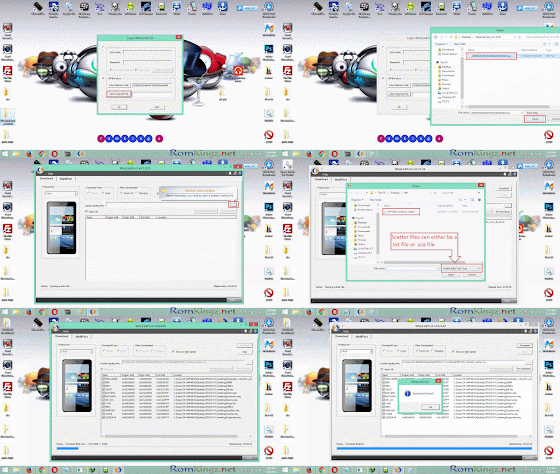
Click on Open RegCode File Navigate and select  ZZZZZZZZZZZZZZZZZZZZZZZZ.key from extract folder
Click OK

Now Click on the button with ... to load scatter file (Scatter files can either be in .txt or .sca format)
Navigate and select the scatter file of the device you want to flash/unbrick or upgrade.
Tick the required partition to flash (Tick all for complete flash or upgrade)
Click Download Button and connect phone to PC

When process is complete,the phone will reboot or start charging depending on the option selected After Downloaded Tab.
Note that first boot after flash 
Congrats! you have successfully flashed your device

Common Errors after flashing a device
If you have null or invalid imei number after flash, restore with mtk engineering mode app, chamelephon, SN Write Tool or mtk droid tools
If device bootloops after flash process, do a factory reset from recovery.
If screen of device divides/displays funny colours when boot up, use another ROM or Firmware

.................................................................................................................... 

MultiPortDownload Tool

How to flash/unbrick MTK smart phones using MultiPortDownload Tool

Multiport Download Tool (MDT) is just another great alternative tool used for flashing MTK smart phones. Follow the steps below and learn how to use Multiport Download Tool to flash or unbrick MTK devices.

we takes no take responsibility on whatever may happen to your device.
Do at this your own risk


Download MultiportDownloadTool for smart phones from here (Latest version preferable)
Download and install smart phone drivers from here

Extract the MultiportDownloadTool you downloaded
Launch SPMultiPortFlashDownloadProject.exe

If you get a pop up showing Fail (its because the DA file has not been loaded),


Just click OK
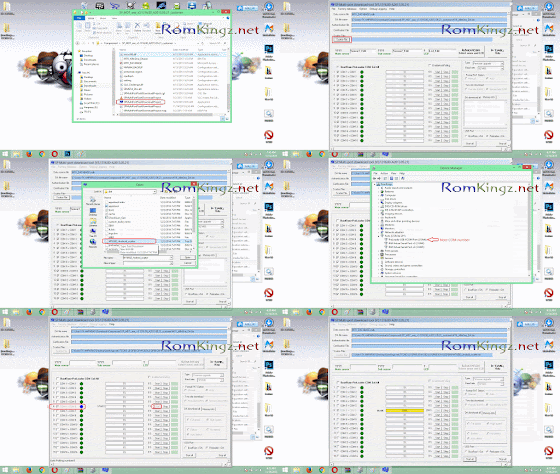
To load DA file, click on File and select Open Download Agent Filethen navigate to the folder of MultiportDownloadTool and selectMTK_AllInOne_DA.bin


Click Scatter file button
Navigate to the folder containing the ROM 
Select the scatter file found inside (eg. MT6582_Andriod_scatter)


Under DA Download All Section,
Tick high speed and Auto detect

Open Device Manager by clicking on Help and select Device Manager
Double Click on Ports (COM & LPT)
Connect the device you want to flash
Note the COM Port number
Disconnect the device
On some versions of MultiportDownloadTool , all you need is to click Scan button and connect the device.The COM port will be detected automatically.


Go back to MultiportDownloadTool and tick the COM Port noted
Click Start button on the corresponding port number ticked.
Now connect the device with battery inserted.
Flash process begins when you see a yellow progress bar
The process is complete when you see DL OK and 100% in the progress bar.


Check out the screen shots of the full procedure on how to use sp multi port download tool below


ERRORS!!

If you see a pop up showing FAIL with Cannot find CheckSum.ini file.....  after clicking Start button,


Download CheckSum_Gen.exe from here

Copy it to the folder containing the scatter file
Launch CheckSum_Gen.exe 


Wait for the process to complete and he CheckSum.ini file (process takes about 30seconds)


You can now click Start button to flash your device.
Crdt: #romkingz.net

Available link for download

Read more »

Sunday, February 26, 2017

Solve Bootloop and Unbrick Cant into Download Mode

Solve Bootloop and Unbrick Cant into Download Mode


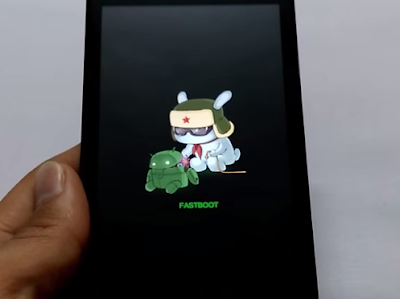
If your redmi 3 is in bootloop and you can´t acess to download mode but only on fastboot mode, you have to try this:

1. Put your phone in fastboot mode
2. Install this in your pc: http://forum.xda-developers.com/showthread.php?t=2317790
3. Connect your phone to your pc
4. Open what you installed
5. Type the command: fastboot devices
6. If you see number means that your phone is connected to your pc
7. Type: fastboot reboot , however don´t press enter
8. Press [Volume Up] and [Volume Down] at the same time
9. Press now enter

Now your phone restarts and you probably see a black screen, if that happens you are in download mode and you can now flash using this tutorial

Available link for download

Read more »

Tuesday, February 14, 2017

How to Flash and Unbrick Redmi 3 Prime in Detail Step

How to Flash and Unbrick Redmi 3 Prime in Detail Step


Use Windows 64-Bit, users having issue on 32-Bit Windows. You may face this error "Not enough storage to process this command"
Important: - Before flashing it is advised to take the backup of data and make sure that your phone battery is charged enough.

You need to Start your Phone in Download Mode (Not Fastboot Mode), as shown below

Do The Following.

1. Go to the Recovery Mode by Volume Up and Power button.
2. Click Download from Screen
3. Plug USB Cable to PC
4. PC will install the device driver, let it do its job

>

On your PC do these next steps:

1. Open Device Manager and Phone will be detected as QHUSB_BULK under the Com Ports section.

Right Click and choose Update Drivers.

Note : - Driver Signature Enforcement: Its recommended to disable. Reboot your PC in Advanced Mode and Choose Disable Driver Signature.
Follow this post Disable Driver Signature Enforcement in Windows 7 64-Bit

2. Choose Browse My Computer for Driver Software

3. Choose the Path of Xiaomi Folder. Most of users will find it like this.
Note:- If Folder does not exist , Install MI Flash (Link below) first.
Win 64 bit C: Program Files (x86) Xiaomi MiPhone Qualcomm Driver
Win 32 bit C: Program Files Xiaomi MiPhone Qualcomm Driver

4. Choose Install this Driver Software anyway.

5. Wait till driver installation successful.

6. The driver will be installed Sucessfully and you can see added in Ports as Qualcomm HS-USB.


Now we are ready to Flash!

Flashing ROM Part.Windows 64-Bit recommended as users are facing issues on 32-Bit and brick thier devices.

The ROM links below are of Fastboot ROM. Recovery ROM will not work.If you have already downloaded Fastboot ROM no need to Download again.
(File Extension with .Zip file is Recovery ROM, .tgz or .tar file is Fastboot ROM)

you can choose your Fastboot rom here:

Fastboot Rom Download Link

China Stable (V7.2.6) :

Download Here alternate

China Developer (6.3.31) :

Download Here alternate

Link list for newer fastboot rom [Updated] go to here

If link does not work, Put Letter "o" not Zero before the Link address, or just click the alternate link

Flash Tool :
Download Here (Version 20151028) alternate link

Important: - Before flashing it is advised to take the backup of data and make sure that your phone battery is charged enough.

Steps to Flash ROM:

1. Download ROM from the above link (Which one you want to Flash) and extract it to Desktop(Use Winrar Software to extract).
(Please check if the file suffix is .tgz. Please rename it to .tgz if the suffix is .gz or .tar)
Note: - Some users get error while extracting on Desktop Because there is space in the username of PC or the folder as shown.

The users should put the ROM In C Drive in a folder without spaces. E,g C:/ROM/MIUI

2. Download flashing tool from the above link and install it.
3. Once installation is complete, Run MiFlash application
4. Click on browse
5. Select ROM folder from Desktop(From the location where ROM is saved)

Note: -The path of the ROM folder Should be like "C:MIUI" Not "C:MIUIimages"
The MIUI Rom folder should Contain the following files


6. Press Refresh button to see you device in flashing tool.
After pressing refresh button you will see connected device (COM 30)

Choose Flash_all option.

8. Click on Flash and it will start process


9. Once flashing process completes


Remove the cable and keep Power Button pressed until it Vibrates.
The Device will start, wait till completion , it can take up to 10 Minutes.


If your redmi 3 pro is in bootloop and you can´t acess to download mode but only on fastboot mode, pls check this tutorial

source

Available link for download

Read more »