Showing posts with label google. Show all posts
Showing posts with label google. Show all posts
Tuesday, March 14, 2017
Translate blog post to any language using Google Language Translate widget on your blog
Translate blog post to any language using Google Language Translate widget on your blog
The google language translating widget, helps your readers Translate your blog post to any language among the 12 languages provided. This will make non English speak country also visit your blog, since they can adjust your blog write up to there language for understanding. So let no one say "I dont understand English that why I dont visit your blog".

It can also auto detect language and also translate your blog post to the reader chosen language.
Follow the steps below to add Google language translating widget to blogger.
Step 1.
Login in to your blogger dashboard; select LayOut then next click on AddWidget.

Step 2
Scroll down to HTML/JavaScript.

Now highlight your cursor if on screen touch smartphone simply long press to see the select and copy option.
Now paste the below code you copied into the blank box you see after clicking on AddWidget.
<script type="text/javascript">function showHide(shID) {if (document.getElementById(shID)) {if (document.getElementById(shID+-show).style.display != none) {document.getElementById(shID+-show).style.display = none;document.getElementById(shID).style.display = block;}else {document.getElementById(shID+-show).style.display = inline;document.getElementById(shID).style.display = none;}}}</script><style>.google_translate img {margin: 10px 20px 0px 20px;height: 24px;width: 24px;}.google_translate:hover img {filter:alpha(opacity=0.30);-moz-opacity: 0.30;opacity: 0.30;border:0;}.more {display: none;a.showLink, a.hideLink {text-decoration: none;color: #0880C4;padding-left: 18px;background: transparent(down.gif) no-repeat left; }a.hideLink {background: transparent url(up.gif) no-repeat left;color: #0880C4;}a.showLink:hover, a.hideLink:hover {color: #0880C4;}</style><div><a class="google_translate" href="#" target="_blank" rel="nofollow" title="English" onclick="window.open(http://translate.google.com/translate?u=+encodeURIComponent(location.href)+&langpair=auto%7cen&hl=en); return false;"><img alt="English" border="0" align="absbottom" title="English" height="24" src="https://blogger.googleusercontent.com/img/b/R29vZ2xl/AVvXsEg_EoBdDqbSJlQ3vXAgCWlFyaSHFtDBanJkvF-Ax05CeL_M2AHr4h0Cjw8sMUhmoC9YogG6nUhNRi5PJWo2iR6FuPV6i_ZSvgY_khzRz_GpNelUsu4RRjE4NYu6kS8vWxMVwxL4qWODitPy/s1600/United+Kingdom(Great+Britain).png" style="cursor: pointer;margin-right:8px" width="24"/></a><a class="google_translate" href="#" target="_blank" rel="nofollow" title="French" onclick="window.open(http://translate.google.com/translate?u=+encodeURIComponent(location.href)+&langpair=auto%7cfr&hl=en); return false;"><img alt="French" border="0" align="absbottom" title="French" height="24" src="https://blogger.googleusercontent.com/img/b/R29vZ2xl/AVvXsEh1WR7yc6THy3UaDDD4ZckBSIUtWSZz1AdrcpkGNY81TVrYbKswdWiNbKPLH2UEIP2znBG6Lj5uLZG2NaWxLL_bsKW9xrsvN0q4pdtmxquIwmyEi3YOd3C95-GRcpIl9WpuLdX6QZxojfvz/s1600/France.png" style="cursor: pointer;margin-right:8px" width="24"/></a><a class="google_translate" href="#" target="_blank" rel="nofollow" title="German" onclick="window.open(http://translate.google.com/translate?u=+encodeURIComponent(location.href)+&langpair=auto%7cde&hl=en); return false;"><img alt="German" border="0" align="absbottom" title="German" height="24" src="https://blogger.googleusercontent.com/img/b/R29vZ2xl/AVvXsEgkG4Q_P1wZwRe4tLtUnkTwBQQ0oQmEswgdnpQz9gPbAS075rrpvVqYg-msMaO819q7YZ29_yyjmNz9hIlShJsWCGPF3Jc-6YjVLy0SX1sKGluuToX7wjeOlo5CWr2DJT_ZgY-79xgKCPMG/s1600/Germany.png" style="cursor: pointer;margin-right:8px" width="24"/></a><a class="google_translate" href="#" target="_blank" rel="nofollow" title="Spain" onclick="window.open(http://translate.google.com/translate?u=+encodeURIComponent(location.href)+&langpair=auto%7ces&hl=en); return false;"><img alt="Spain" border="0" align="absbottom" title="Spain" height="24" src="https://blogger.googleusercontent.com/img/b/R29vZ2xl/AVvXsEgmYnpVR_mWxzvcK2771JRAS8VAqz-EdBNBhPzFnZWELfdJsWX3uzku5HroyLu683C100OYYsD-M1bLh_D3dYdwFDtBPS5YlMzkS78davnyu0pVzm0TL5QSEmbia_qArqXbJH2lqq9hr5yW/s1600/Spain.png" style="cursor: pointer;margin-right:8px" width="24"/></a><a href="#" id="example-show" class="showLink"onclick="showHide(example);return false;">More</a><div id="example" class="more"><a class="google_translate" href="#" target="_blank" rel="nofollow" title="Italian" onclick="window.open(http://translate.google.com/translate?u=+encodeURIComponent(location.href)+&langpair=auto%7cit&hl=en); return false;"><img alt="Italian" border="0" align="absbottom" title="Italian" height="24" src="https://blogger.googleusercontent.com/img/b/R29vZ2xl/AVvXsEggCSHeZxKcbkA1kBq5dOxLZvbRpOA3k-AsOXwNALEZQwsSaAE-9hUS7Faya1EETpK__27diy9MXghFMSHAYMJqtie_8FwHWSp1f0rijf6pAY_gwThMLMaM-1RKEevTcRXnQDfW8tpJyD-I/s1600/Italy.png" style="cursor: pointer;margin-right:8px" width="24"/></a><a class="google_translate" href="#" target="_blank" rel="nofollow" title="Dutch" onclick="window.open(http://translate.google.com/translate?u=+encodeURIComponent(location.href)+&langpair=auto%7cnl&hl=en); return false;"><img alt="Dutch" border="0" align="absbottom" title="Dutch" height="24" src="https://blogger.googleusercontent.com/img/b/R29vZ2xl/AVvXsEhSWmgjIO_sHi3vPFErCeEDhYzCq_bBC4RcmmfinzVx6_L0Uu2-6w7u9E1Y1t5oAur8zHvbDVUSqtl2RCYHMsXHuIuf4Hwl5oMQ86N3_5dxfdIntD6T1FkZV68tuPlc-zFQVYOf0HgzYZ95/s1600/Netherlands.png" style="cursor: pointer;margin-right:8px" width="24"/></a><a class="google_translate" href="#" target="_blank" rel="nofollow" title="Russian" onclick="window.open(http://translate.google.com/translate?u=+encodeURIComponent(location.href)+&langpair=auto%7cru&hl=en); return false;"><img alt="Russian" border="0" align="absbottom" title="Russian" height="24" src="https://blogger.googleusercontent.com/img/b/R29vZ2xl/AVvXsEhf7m8tzVlRmoIr81lVPnM88ufWYJU-52D3J-si-Fql4JWA-fKJUQUBJIXFiIYwHcrj5DXqMKe2m5-Iq9Nf1nwEXnBnHv_cbJxVfjnjnq7DsYArzDLYXmFvfsD6atxg_Irn8dJyIjS6PHSr/s1600/Russian+Federation.png" style="cursor: pointer;margin-right:8px" width="24"/></a><a class="google_translate" href="#" target="_blank" rel="nofollow" title="Portuguese" onclick="window.open(http://translate.google.com/translate?u=+encodeURIComponent(location.href)+&langpair=auto%7cpt&hl=en); return false;"><img alt="Portuguese" border="0" align="absbottom"title="Portuguese" height="24" src="https://blogger.googleusercontent.com/img/b/R29vZ2xl/AVvXsEj2QoyxDgPTjv3fiWtOTb-trdT42eGhYYVS1HdIj6HMN1Y31fDjmjkt-iY9jyfYdGSvEoYFIkOqicyK1eqEsPkQ5HLnwrTSs6411JRTVLmPlHkwDuudZSlLtI2TFZvPUxcE9Ht5sqnl37oQ/s1600/Brazil.png" style="cursor: pointer;margin-right:8px" width="24"/></a><br /><a class="google_translate" href="#" target="_blank" rel="nofollow" title="Japanese" onclick="window.open(http://translate.google.com/translate?u=+encodeURIComponent(location.href)+&langpair=auto%7cja&hl=en); return false;"><img alt="Japanese" border="0" align="absbottom" title="Japanese" height="24" src="https://blogger.googleusercontent.com/img/b/R29vZ2xl/AVvXsEjl8VyTJpa6vCoPItOlRd9IruKw03Yyk7zoNGvl5TXZfZbMiZ4RudfNa807rHzA2rBbhVJSPOvWJoVkz5Q1_rMybj9nfCBcHFjg_SfCQTkQ5gLCBEow7vXoWANcJRmgMcdCGYk1ZdsqE0Sb/s1600/Japan.png" style="cursor: pointer;margin-right:8px" width="24"/></a><a class="google_translate" href="#" target="_blank" rel="nofollow" title="Korean" onclick="window.open(http://translate.google.com/translate?u=+encodeURIComponent(location.href)+&langpair=auto%7cko&hl=en); return false;"><img alt="Korean" border="0" align="absbottom" title="Korean" height="24" src="https://blogger.googleusercontent.com/img/b/R29vZ2xl/AVvXsEiniG-SsgwvhwEhclBXgKnj_oI9sPcG_0p5zG22itUmOY1y1rvRkeQO3eEUhO0a72de1UJOKAJ7wBjtYTKJ3BvzmaJe_a-7p9wrcajq01mDPKdR3Yzq1g6e1gXwXfCCFUBX4U1vb8oXePC3/s1600/South+Korea.png" style="cursor: pointer;margin-right:8px" width="24"/></a><a class="google_translate" href="#" target="_blank" rel="nofollow" title="Arabic" onclick="window.open(http://translate.google.com/translate?u=+encodeURIComponent(location.href)+&langpair=auto%7car&hl=en); return false;"><img alt="Arabic" border="0" align="absbottom" title="Arabic" height="24" src="https://blogger.googleusercontent.com/img/b/R29vZ2xl/AVvXsEgj3IBgKtLW4E2fMeOpMBEHa_VPo2xTB4PKJawmeGPiNIYUo0hxlpFJb8Wr09EY8Lx1SiXQHtCLoxxdA6jpQGaP1OL7ntnFRu_p4fYHMo8JzoQl6Ch3vpg655GhOZWcFlGByP3CP5KTYFBa/s1600/Saudi+Arabia.png" style="cursor: pointer;margin-right:8px" width="24"/></a><a class="google_translate" href="#" target="_blank" rel="nofollow" title="Chinese Simplified" onclick="window.open(http://translate.google.com/translate?u=+encodeURIComponent(location.href)+&langpair=auto%7czh-cn&hl=en); return false;"><img alt="Chinese Simplified" border="0" align="absbottom" title="Chinese Simplified" height="24" src="https://blogger.googleusercontent.com/img/b/R29vZ2xl/AVvXsEgYvrKBEs9-geogyz4WnBqk0atUgubBTFdN9AooX98-5mQx-CUOVk3aKtTP5OafvmNcmeO0eilz2fDiugJo84-tkYR_QTH4W9jQBh8kHJGhq8erk5SFsrslC9NfYQ0Bw24JYsqiwnwlag7A/s1600/China.png" style="cursor:pointer;margin-right:8px" width="24"/></a><p><a href="#" id="example-hide" class="hideLink"onclick="showHide(example);return false;">Hide</p>
</div>
</div>
NB; Never you write any thing in the title box provided above the blank box.
Step 4
Click on Save to save the changes you have made in your blogger blog layout.
Comment are attended to immediately, do not hesitate to ask questions and let us know if this trick helped you.
posted from Bloggeroid
Available link for download

Sunday, March 5, 2017
Radar Google Maps port to GTA SA Android
Radar Google Maps port to GTA SA Android
Ini adalah Mod Radar Google Maps yang di port dari GTA SA PC ke GTA SA Android oleh M-13. mod ini saya ambil dari GTA Inside. Siapa lagi yang tidak mau dengan Radar ini, Radar yang penuh Fitur, disetiap Kota diberi Nama.

CREDIT
Author : Yoyo2 And Pawelo
Port to Android : M-13
CARA PEMASANGAN / CARA INSTAL
1. Open gta3.txt menggunakan TXDF
2. Pilih diatas import with Alpha
3. dan import radar tersebut, tunggu sampai selesai
DOWNLOAD
Link : DOWNLOAD
Upload by : Carl Johnson
Available link for download
Saturday, March 4, 2017
How to Install Google Play store for Redmi 3 Pro China ROM
How to Install Google Play store for Redmi 3 Pro China ROM
Redmi 3 is a great phone, yet we need Google Play Store, which is not available with the China Stable and China Developer ROM. This a pictorial guide to make it a breeze with installation.
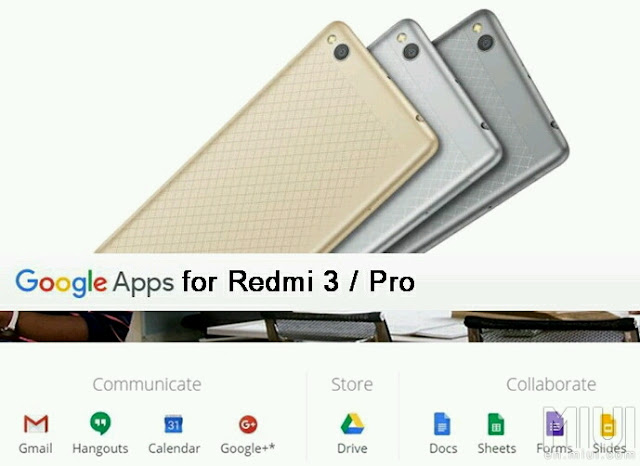
IMPORTANT: Before even going any further, please make sure you enable your settings for installing a 3rd party APK files. Installing APK click the following link: Installing APK file on your Redmi Note 2 for noobies
Features:
Updated V2 of the popular Google Installer by Eric Xiang.
Supports Kitkat, Lollipop & Marshmallow
Easy installation.
FROM YOUR DEVICE:
Just SCAN using your QR scanner to get Google Installer_2.0:

FROM YOUR PC / COMPUTER:
1. Click the flashing Google Installer Icon to download the “Google Installer”.

2. Unzipped and transfer the Google Installer to the internal memory of your Redmi 3 via USB connection.
3. Just follow thru’ the sequence like the illustrations below. Goto File Explorer > APKs > "Google Installer.apk”
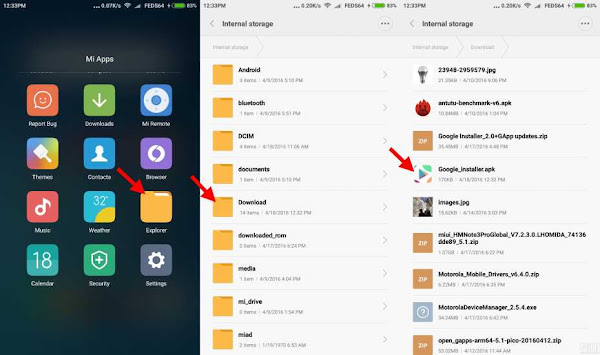
4. Launch the Google Installer icon. Click Blue Circle to start the installation and follow the sequence as shown below:-
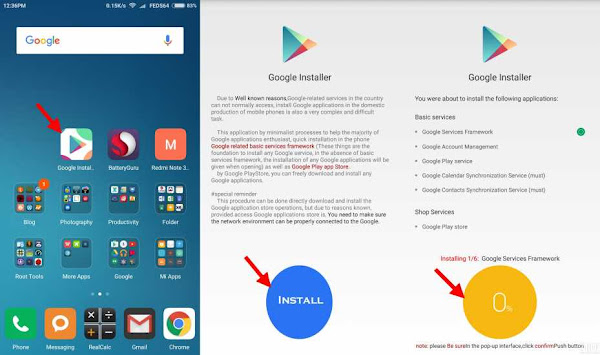
Note: Just click OK and Install, do not click launch at anytime during the installation of the apps.
5. Towards the end of the installation, just follow the illustration to click the RED CIRCLE. and accept the terms, click Allow Google to read SMS, finally go thru the setup of Google sign-in, as follows:-
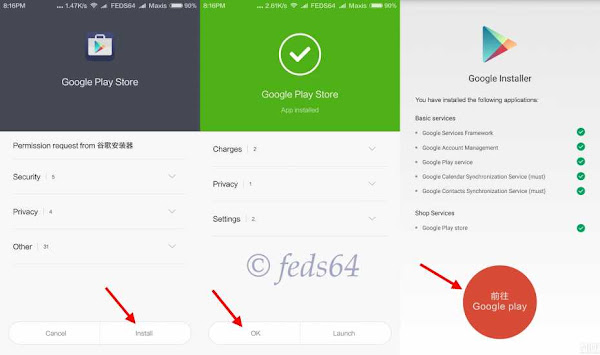
6. As you can see your phone is busy syncing the contact and other Google Apps and wait depending on your WiFi / Data connection for it to update the core applications before even signing to Google Play Store to avoid getting errors.
Note: For those using Development ROM, Goto Downloads > 3 dots on the top right hand corner > Settings > Unlimited, to avoid not download when you are on Data connection.
7. Now you can go with the signing-in to Google and you could now check the Build version. Google > Settings > scroll up towards the bottom, as shown below:-

8. Now, you have successfully installed Google Playstore.
CREDIT:
Eric Xiang - Google Installer_V2
Source
Available link for download
Wednesday, February 22, 2017
Tuesday, February 21, 2017
Saturday, February 18, 2017
Google Duo How to Set up and Use Duo Video Calling App
Google Duo How to Set up and Use Duo Video Calling App
Google Duo is the new, simple video calling app that brings you face-to-face with all the people that matter most. One of the more appealing aspects of Duo is the fact that it doesnt require a Google account to use it. Instead, Duo uses your phone number which making it easier for you to call/chat with the contacts that are already in your phone.
If someone you dont know is calling you, or a friend is calling from a new phone number, Knock Knock wont work. The same thing happens when you call someone. If your number isnt saved as a contact, Knock Knock is off by default.
With Duo, you can get closer to everyone you love with simple, high-quality video calling on iOS and Android. Google Duo is very easy to use and the set-up is simple. The first time you launch Duo, youre asked to enter your number. Google then sends you a text message containing a code to enter. Once youve verified your number, youre signed up and ready to start using Duo.

To Set-up Duo Video Calling1. Download Google Duo from Google Play Store here or from iTunes Store here2. Open the app you downloaded. 3. Agree to Googles Terms and Conditions for the Duo app. 4. If youre running Android 6.0 or higher, youll have to accept permissions one-by-one at launch:
- Allow Duo to take pictures and video so that the app (and whoever calls you) can see you.
- Allow Duo to record audio so that the app (and whoever calls you) can hear you.
- Allow Duo to access your contacts so that it can see which of your contacts are on Google Duo and who you could invite to the service.
- Allow Duo to send and view text messages so that it can send invites to your contacts and so it can see the verification code youll receive in a few steps.
To Make a Call With Duo1. Simply Tap Video Call. 2. Select the person youd like to call from your contacts or type in the number youd like to reach.4. Duo will call your contact, making your video visible with Knock Knock. 5. To end your call, tap the red phone button in the bottom center of your screen.
Google Duo Settings

Go to Google Duo settings by tapping the three-dot menu in the top-left corner of the apps main screen and selecting Settings.
- If you dont want the people you call to see you before they accept the call, you can slide the toggle for Knock Knock off.
- By default, the setting to limit mobile data usage is on, knocking down the video quality when youre away from Wi-Fi, so if you want full video quality this is where you can enable it.
Available link for download
Saturday, February 4, 2017
Google Rolls Out Video Calling App Duo Android Facetime
Google Rolls Out Video Calling App Duo Android Facetime
During Google I/O conference few months back, Google announced two new messaging apps called "Allo" and "Duo". Allo is a text messaging app while Duo is a video messaging app which has some very cool features which makes it stand out. Google Duo app is designed to allow you make video calls to any other user whether you have a fast or slow internet connection. The Google Duo App is currently being rolled out on the Google Playstore and the Apple Store and is expected to be available in all regions before the end of the week. So, what is the Google Duo about?

Google Duo is an app that allows you make video calls to other users of the app even on a relatively poor internet connection. The Duo app makes use of contacts in your phonebook to find users on the app. The app doesnt require a Google account to register, all you need is your phone number just like how Whatsapp works. Google Duo is expected to be the competition to Apples Facetime which comes by default with iOS devices
One of the greatest features of the Google Duo is the "knock knock". This allows you to see a live video of who is calling you before you pick up the video call. This is a very nice feature and allows you know who is calling you beforehand, thereby allowing you have some sense of privacy. Also, all calls are end to end encrypted. CheckOut the Knock-Knock feature in the gif below

Where Can I Download Google Duo?
Google Duo is available for Android and iOS devices. You can download Google Duo for Android from the Google Playstore . If it has not been rolled out in your region yet, you can download the APK from Apkmirror here. iOS users can download Google Duo from iTunes.
In summary, the Google Duo is a very lovely app and I cant wait to start using it. Some people have even rumoured it to be Googles version of the iPhones FaceTime feature. New android phones are expected to come with the App soon. I just love the fact that you use only your phone number to register just like Whatsapp. I wonder when WhatsApp will finally roll out the Video Calling feature, they are already carrying last. :-)
Available link for download
Tuesday, January 31, 2017
GNL Google Now Launcher Old New Version apk File Free Download
GNL Google Now Launcher Old New Version apk File Free Download
You are in a right place to download latest and full version free apk for your android OS version. The old version and the new cracked latest version 1.3.0.1167994 of google now launcher apk is easily avail from apkroot. To download latest version google now apk just follow the link location which is placed at the bottom of this post. The new version of above mentioned mobile device apk is now easily available and it is verified that the link provided given below is safe and easily accessible for all android operating system devices.
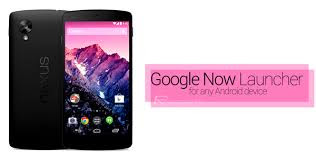
Your download link location is given right below at the end of this article click on the link location and get directly your apk.
Description:
Latest Google Now Launcher 1.3.0.1167994 Apk Free download.
Developers:
Google.
Operating system supports:
Android 4.0 up to latest.
Current version:
Latest and updated version for android devices V 1.3.0.1167994 Apk Free download.
Key features for google now launcher apk:
- Free and verified to safe download.
- Fix android performance and maintenance.
- Supports more then 1,0000 devices.
- Always available on apkroots.
- New live android wallpapers.
Download lazy swipe launcher apk.
Follow the link to start your google now launcher automatically. Please feel free to comment on the box provided at the end. Give feed backs about the above article. OR having trouble while downloading Google now launcher which is the most recommended app for android users. This version is totally life time version.
Download 1.3.0.1167994 Apk google now.
Available link for download
Subscribe to:
Posts (Atom)